Pages

15 August, 2023

Useful Sitecore PowerShell Scripts

In this blog post, I am sharing some of the useful SPE scripts which I used in my previous project. 

Remove Sitecore Originator Field Value

Originator field indicates the branch template used to create the item. In case if the branch template is deleted, the field may be left out with orphaned GUID value. 

Either the entire content tree can be parsed whether there is any orphaned GUID in that field or use Scan the database for broken links in Sitecore Control panel. In the below script, I took the list of items with broken originator field and created an CSV with Column ID for Item ID and script will intake the excel and clear the Originator field. 


Apply random image to article pages

One of the ask is to upload a set of images in Media library and randomly apply one image to each of the article pages which are already created in Sitecore. 

First, we uploaded all the images in a folder in Media library. Then executed the below script which will randomly choose one image and apply it in each article page. We also added a step to publish the page. 

Remove Orphaned Renderings

In certain scenarios, content authors reports us to remove any orphaned renderings across the site. Though it is different between each Sitecore solutions, below code can be leveraged to build custom script and remove renderings. Thanks to Aaron Bickle who provided a starter kit for this task and was able to customize for our solution. 

Sitecore


10 April, 2023

Sitecore 9.3 SIF Install - A connection was successfully established with the server, but then an error occurred during the login process.

Back to blogging after a long pending vacation. :)

Back to a project where Sitecore 9.3 is used in an IaaS model. After using containers for local development in Sitecore 10+, setting up the Sitecore 9 in a VM is a misery. 

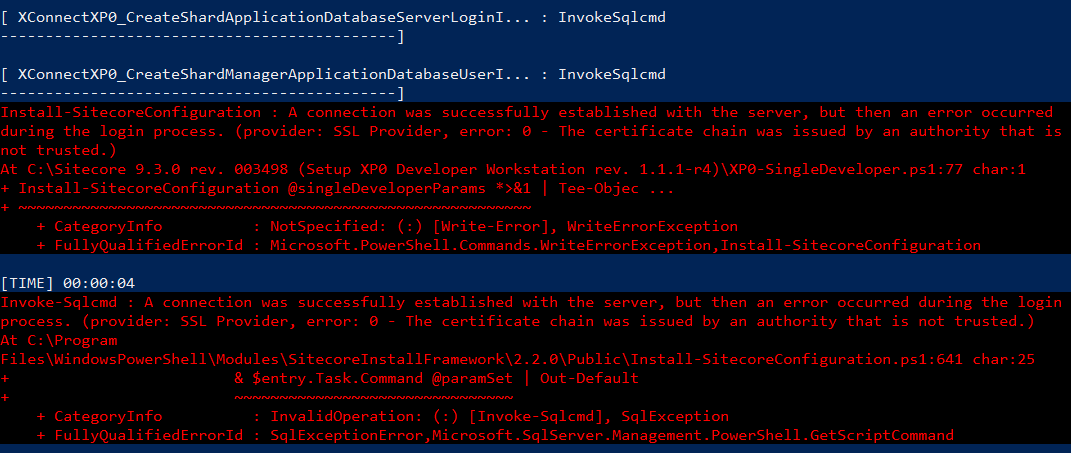
While setting up Sitecore 9.3 using SIF, I was facing an issue while setting up the login for Shard DBs and installation abruptly stopped. 


Error:
A connection was successfully established with the server, but then an error occurred during the login process. 
(provider: SSL Provider, error: 0 - An existing connection was forcibly closed by the remote host.)

Microsoft has clear documentation on what to do when this error occurs. 
One of the solution for the local development machine is to enable Trust Server Certificate while connecting to SQL using Management Studio. That worked for Management Studio. 


In my case, none of this solution worked. Uninstalled the SQL Server completely and installed again but the issue was still there. Looking into the SIF json files, I understood that it is using Invoke-Sqlcmd PowerShell command. This command has various options to pass the variables like SQL commands, login credentials and other parameters, etc... 

Documentation on Invoke-Sqlcmd PowerShell command by Microsoft. One of the parameter is to set the flag for TrustServerCertificate.


Since SIF uses the Invoke-Sqlcmd command, it has designed in a way that we can pass additional parameters. In my case, I had to just pass the TrustServerCertificate flag to True for all the tasks related to Invoke-Sqlcmd. With this change, Sitecore installation was successful without Sql connection related errors. 


17 January, 2023

Sitecore PowerShell - All Page Layout Data Report

Recently, for a migration project, I have been mostly working on Sitecore PowerShell to create reports and content exports. One of the ask from the client is to find out the unique set of pages with certain renderings in a template. So, the solution is to get the list of renderings of the page and find out the number of occurrences of each rendering. By which we can plan for bulk content export on those pages alone and leave the rest for manual migration. 

The below PowerShell script will help you to choose a root folder and it will export the data as below. 


You may consider this as a base script, and you should be able to make use of RenderingDefinition properties to group the component based on your need in line 49. Refer line 53 to 73 for the RenderingDefinition properties. 

Once we got the data, we used the Excel Pivot chart to group the results by Template Name and Layout.


blockquote { margin: 0; } blockquote p { padding: 15px; background: #eee; border-radius: 5px; } blockquote p::before { content: '\201C'; } blockquote p::after { content: '\201D'; }