Sitecore PowerShell has a way to retrieve a media item from media library. Send-File. You pass the ID or the path of media item and file will be downloaded using Send-File command.
In order to download all the media items from a folder, SPE has a script out of the box in the context menu. Select the folder --> Scripts --> Download. This will download all the media items, zip it and download it. Please note that the space in the file name will be replace with %20.
We had a requirement where we need to download a list of media items from various folders. We had the list of media item path and ID in a CSV. If we loop through each ID and trigger Send-File, PowerShell should prompt a window for each file to download the file. Since we had more than 300+ items, clicking download button on each prompt is not a good solution. We used -NoDialog parameter to skip the prompt but Sitecore hangs after the first media download. As per this article, if we pass on the -NoDialog, Sitecore hangs for some reason.
So we went through the Download script (/sitecore/system/Modules/PowerShell/Script Library/SPE/Maintenance/Media Library Maintenance/Content Editor/Context Menu/Download) which is provided out of the box. We modified to send the list of items to be downloaded via CSV.
Our CSV had one column with ID as header. Listed all the media items IDs to be downloaded. Below script will retrieve each items based on CSV, zip it using OOTB script and download it.
Sometimes Sitecore content authors would like to merge the layout from Final to Shared Layout so that the structure of the page can be common across all the languages. In this article, we can empower the content authors to copy Final to Shared layout themselves using a click of a button in the Content Editor ribbon using Sitecore PowerShell (SPE).
Step 1: Add Integration Point & Module
With Sitecore PowerShell (SPE), there are multiple integration points available that may be added to modules. In this case, we need to add it as a Chunk in Presentation Ribbon.
Add PowerShell Script Module in Script Library folder with a name. Example: Sample
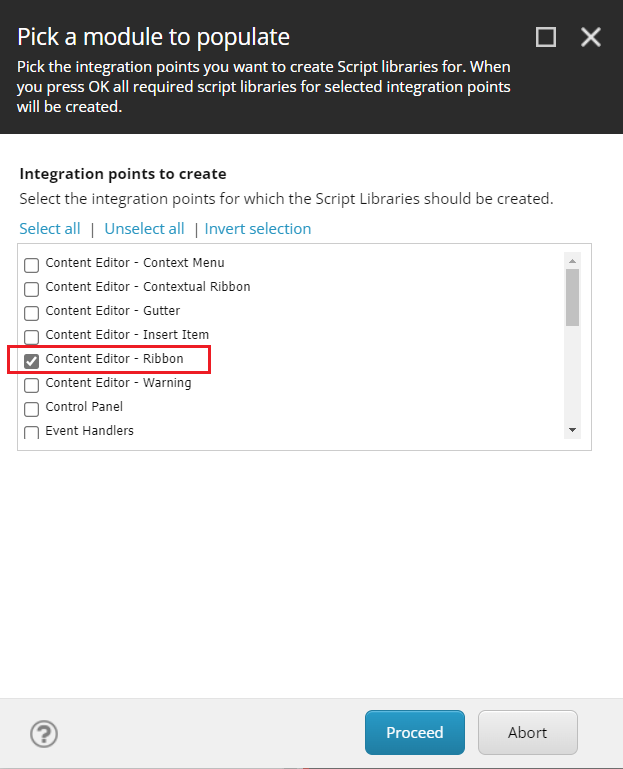
In the newly Sample PowerShell Script Module item, add a Integration Point Libraries. This will open a window to select the integration points. In this dialog, choose Content Editor - Ribbon. This will add the ribbons which are available in this system as Script Library.
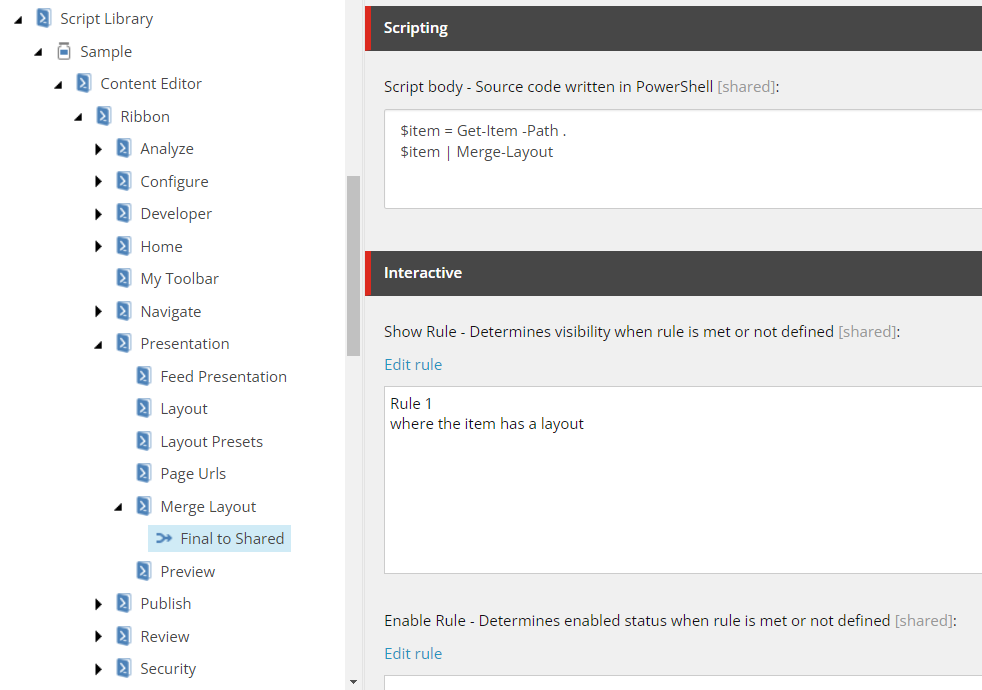
In the Presentation item, add a PowerShell Script Library called Merge Layout. This will be the name of the chunk in the Presentation ribbon. And then add a PowerShell script item called Final to Shared. We can set an icon in the Appearance section of this item to match with the purpose of this button. In this case, we are merging the layout so I chose Arrow merge (/~/icon/office/32x32/arrow_merge.png).
In the script body, we can add this simple script to get the current item and then call Merge-Layout command. The Merge-Layout command takes all the layout information stored in the FinalLayout field and merges into the SharedLayout field. The FinalLayout field is reset after the merge completes. This will be done only in the current language. In case if other languages are having final layout, additional script should be added to remove the Final Renderings field values in other languages.
We can add Show Rule as "Where the item has a layout". We can also add Enable Rule to be specific to ACL of the project. For non-admins to use this button, I suggest to add whether the item is locked and locked by me. This will let the non-admins to run this script without any issues.
In order to remove all the empty Ribbon libraries, go to Sample PowerShell Script Module item, right click, scripts, Purge Empty Libraries. This will remove all the empty Script Libraries.
Step 2: Sync with Core database
Some integrations need to be synced with the Core database through the PowerShell ISE.
Open Sitecore PowerShell ISE from Launch Page.
Go to Settings Ribbon, Rebuild All button, Sync Library with Content Editor Ribbon. This will sync the newly created integration to sync with Core database.
Since there are Show and Enable rule, if the selected item matches the rules, then button will show in the Presentation tab and we can merge the layout from Final to Shared layout by clicking the button.
Shared fields (includes Shared Layout) and Publish related items may lead to unexpected results to the content in target database.
First, let's talk about Shared Fields.
Shared fields are shared by all versions in all languages.
Shared field changes will be published even though the latest version of the item is not in final workflow state.
Shared field values cannot be staged in a draft workflow state unless we use publishing restrictions.
Scenario:
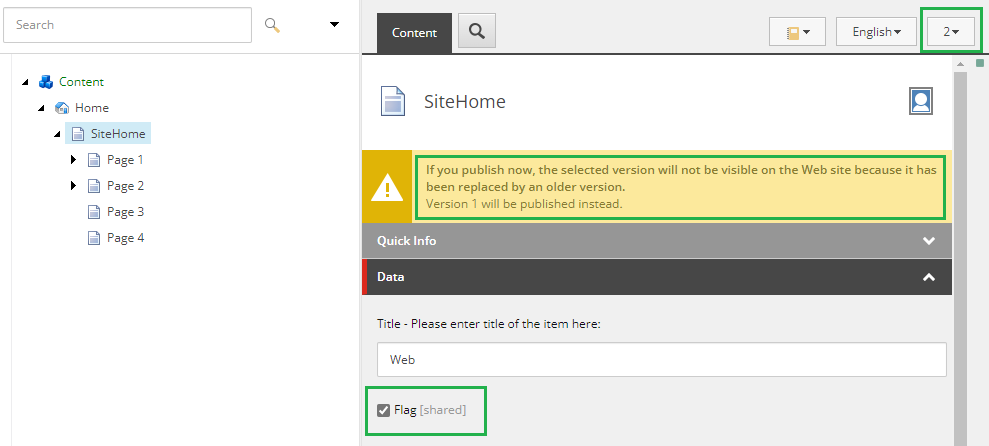
Item has a Shared field of type checkbox. Version 1 of the item has this field checked.
Version 1 is approved and published.
User creates Version 2 and it is in draft state. User updates the Shared field checkbox to unchecked.
Keeping the item in draft state, user publish the item and Sitecore will complain that the version is not in final state so it will publish the Version 1 instead.
Version 1 will be published along with the Shared field checkbox changes (unchecked).
It is known and expected that Sitecore will publish the Shared field changes along with the previously approved item version.
Second, let's talk about the publish related items.
Scenario:
Site has two languages: English and German.
All the items have 1 language version each and they are approved and published.
Content author A creates a new version (draft state) in SiteHome item and updates the Shared field from unchecked to checked. Also added a component in Shared Layout so that it is applicable for all the languages.
Content author B adds Blog item as a link in the CTA item and publishes CTA item with publish related items option. Deep scan is disabled in the configuration.
Looking at the above list, these three items are included for a reason.
Skipped: /sitecore/content/Home
Updated: /sitecore/content/Home/SiteHome
Skipped: /sitecore/content/Home/SiteHome/Page 2
The Blog item is a related item for CTA item. In order to publish the related item "Blog", Sitecore parse the parent items till the Sitecore's root item (/sitecore), publish it first and then publish the Blog item.
Reason: In order to maintain the same content tree in the target database, Sitecore publishes every parent items of related item before publishing the related item.
Impact:
The SiteHome item (version 2) which is in draft and has changes to a Shared field and the Shared Layout (__Renderings) are also published though it is not ready to be published. Sitecore publishes version 1 with Shared field changes to Target database.
Any out of the box configuration?
Reached out to a Sitecore MVP and also raised Sitecore support to see if there is an out of the box option to skip these parent items if the target database already has the same content tree. There is no configuration available to skip these items. Sitecore support also agree that if the content tree is same in target database, there is no reason to publish these parent items and unnecessarily publish these staged shared field changes.
Sitecore support registered a feature request to change the default Sitecore behavior that can cause problems at the site by publishing changes that are not in the final workflow state so that it can be considered for future implementation and provided a reference number.
Possible approach to fix this issue:
We can customize the <getItemReferences> pipeline to add a logic to allow a parent of related items to be published if it isn’t present in the target database. The processor "GetItemReferencesProcessor" can be tweaked to prevent publishing the parent items of the related item if the content tree matches with the source database. There will be a significant impact to the publish performance. I will create another blog once I have a working prototype with this implementation.